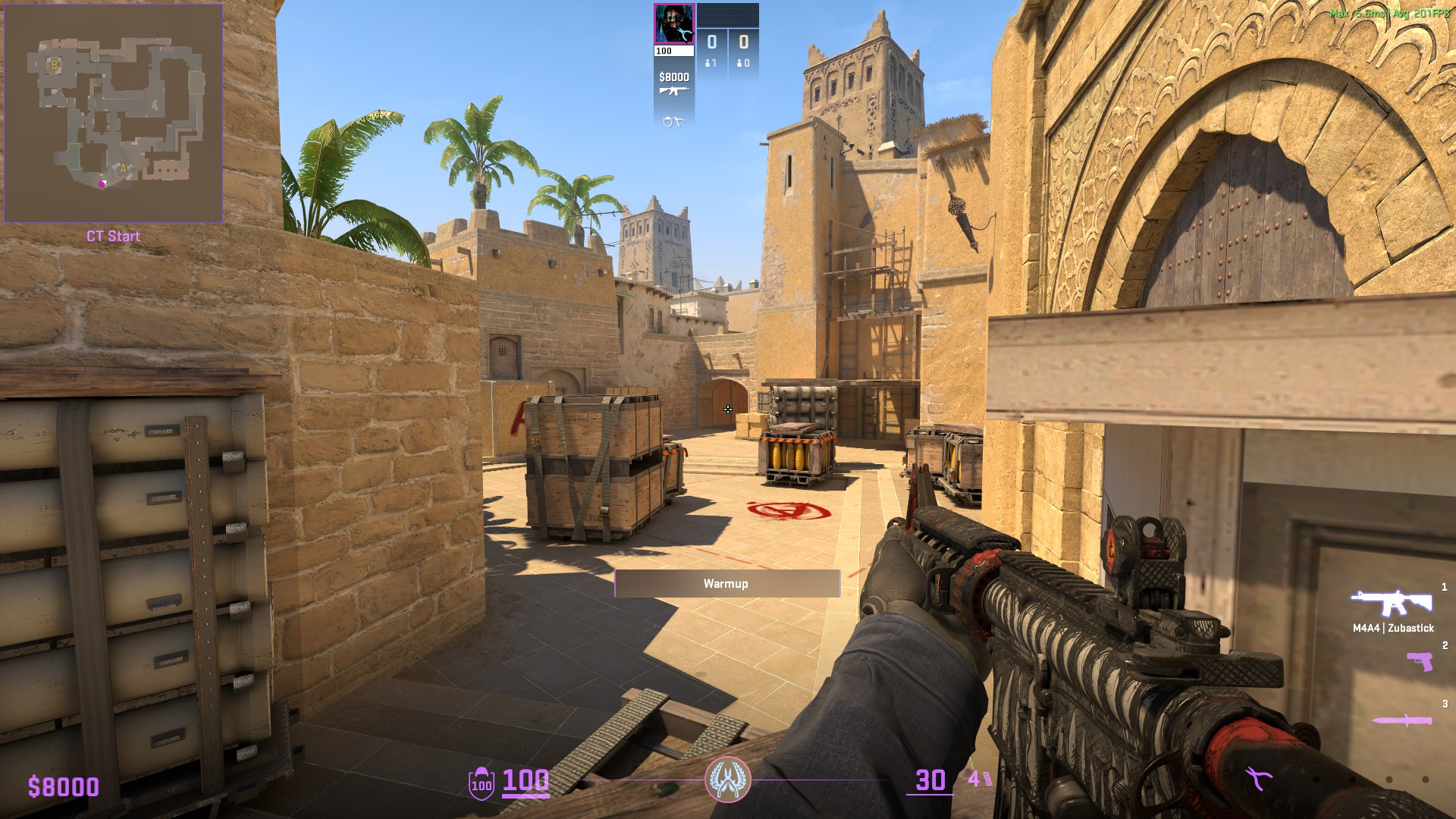

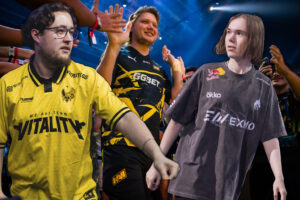



If you have spent any time watching professional tournaments or climbing the competitive ranks, you have probably noticed that no two players hold their weapons in quite the same position.
Setting up optimal CS2 viewmodel represents one of the easiest steps you can take to clean up your overall display and give yourself a clear visual field during tense rounds.
Finding the right balance between screen clarity and comfortable aiming takes a bit of experimentation, but the results always pay off when holding a tight angle.
This guide breaks down everything about configuring your weapon layout, exploring how each axis functions, how console commands give you total control, and which setups the world’s best players bring into official matches.
What you need to know before touching the settings
The primary objective when configuring CS2 viewmodel involves opening up your display while maintaining a natural visual feel for your weapons.
Achieving an effective setup comes down to pushing your gun model away from the center of your screen and lowering its height, which instantly opens up your peripheral vision along the bottom corners. This does not affect your system requirements metrics at all – it’s just a convenience thing for most players.
Your weapon placement operates strictly as a first-person visual layer on your local client, meaning these adjustments remain completely invisible to other players in the server.
While shifting weapon positions does not alter recoil control, spray patterns, or bullet trajectories, selecting tailored CS2 viewmodel significantly lowers visual obstruction during heavy firefights.
Because the developers removed random idle weapon movement from the game, many players use their hand positions as static reference points for aligning precise grenade lineup throws.
Taking full control through the developer console
Opening the developer console gives players complete command over every spatial coordinate, making it the standard process for adjusting CS2 viewmodel.
You can enable the console inside the game menu under settings, which allows you to open the input window during matches using the tilde key.
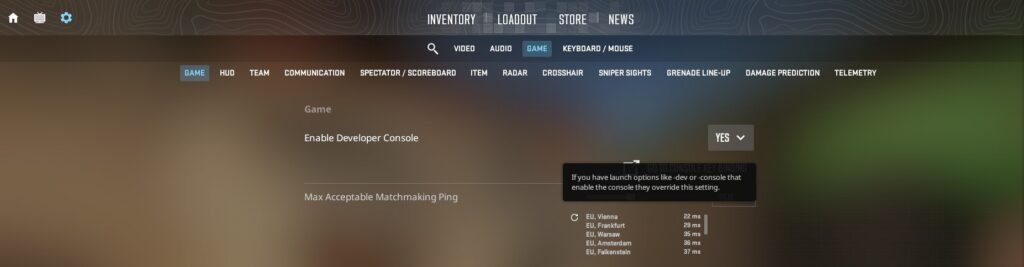
Fine-tuning your setup relies on 4 core commands that control distance, horizontal placement, longitudinal depth, and vertical elevation within strict numerical boundaries.
Zooming out with the field of view
The viewmodel_fov command controls how far your character holds firearms away from your camera, allowing values ranging from 54 to 68.
Setting this command to 54 pulls your weapon right up against your perspective, which creates an enlarged gun model that blocks a massive portion of your view.
Bumping this number all the way up to 68 pushes your arms further forward, shrinking the overall profile of your gun.
Playing with these numbers drastically alters how CS2 viewmodel render depth on screen. For instance, a higher viewmodel_fov number will make the gun you are holding look smaller, taking less of your screen. The lower number will make the gun look larger, thus, taking more of your screen.
Shifting your weapon across 3 spatial axes
Moving your weapon around your display involves 3 spatial commands that shift your arms along horizontal, longitudinal, and vertical axes.
The viewmodel_offset_x command shifts your weapon side to side between -2.5 and 2.5, where positive values slide the gun toward the right edge of your screen.
Longwise movement is controlled by viewmodel_offset_y, which shifts your gun forward or backward between -2 and 2 to change arm extension.
Lastly, viewmodel_offset_z adjusts vertical height between -2 and 2, where choosing negative values drops your weapon toward the bottom border to keep your vision open.
Exploring the most popular CS2 viewmodel today
The community has spent countless hours testing different coordinate combinations to find the best layouts.
Selecting the right configuration depends entirely on your personal playstyle and monitor resolution.
Testing out proven layouts allows players to skip the tedious trial-and-error phase of adjusting settings.
Below are the definitive setups that currently dominate the competitive scene.
The universal competitive sweet spot
This specific layout stands out as the most widely adopted choice for modern CS2 viewmodel in competitive play because it keeps the center of your monitor extremely clean.
Applying viewmodel_fov 68, viewmodel_offset_x 2.5, viewmodel_offset_y 0, and viewmodel_offset_z -1.5 moves your weapon away from your crosshair while maintaining a grounded look.
This setup ensures that your gun sits neatly in the lower corner without obscuring incoming threats, making it perfect for aggressive riflers and passive snipers alike.
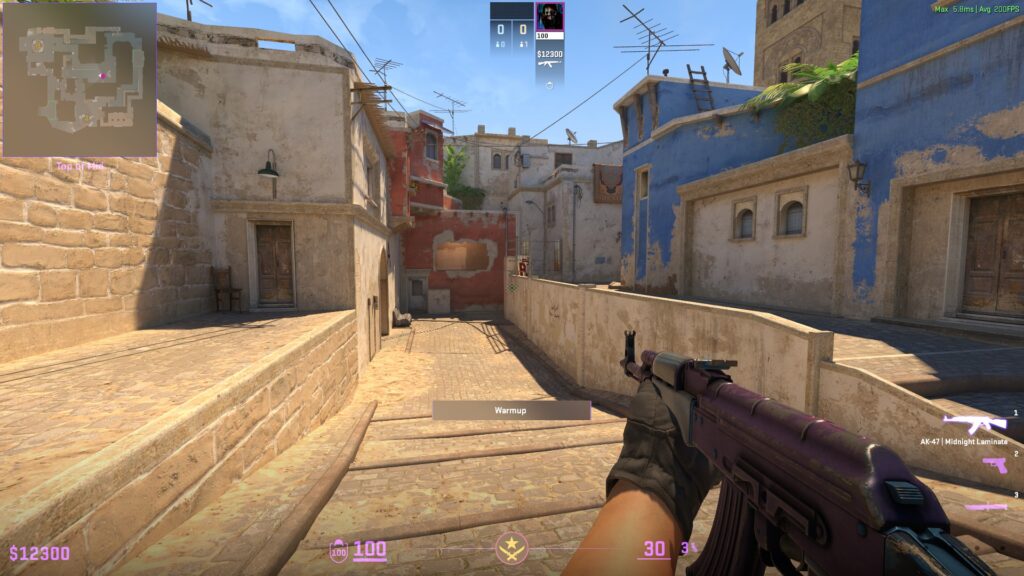
Players who rely on fast reaction times gravitate toward this configuration because it minimizes the amount of screen real estate taken up by bulky character arms.
If you feel unsure about which numerical values to test first, punching these coordinates into your console provides the safest starting point for long-term consistency.
Pushing for maximum screen visibility
An alternative layout for CS2 viewmodel prioritizes total screen area by tucking the weapon model as far into the corner as the engine allows.
Using viewmodel_fov 68, viewmodel_offset_x 2.5, viewmodel_offset_y -2, and viewmodel_offset_z -2 drops your arms to the absolute lowest possible position.
This configuration works exceptionally well for players who cover long distances on open maps like Dust 2 and need every bit of peripheral vision available.
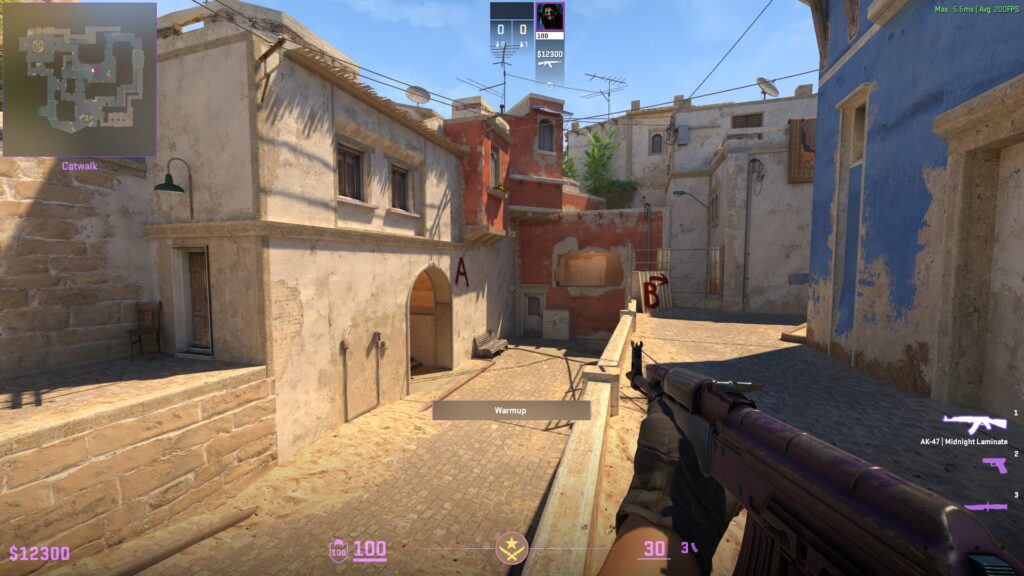
Some gamers find this setup slightly unnatural at first because the gun model looks unusually small and compressed against the edge of the interface.
Sticking with this maximum visibility approach often results in better situational awareness when defending wide choke points or moving through chaotic bomb sites.
Going back to the old-school classic feel
Veterans transitioning from older franchise titles often prefer a grounded gun position that sits closer to the middle of the screen, mimicking the default aesthetics of older iterations.
Combining viewmodel_fov 60, viewmodel_offset_x 1, viewmodel_offset_y 1, and viewmodel_offset_z -1 creates a balanced look that brings the firearm closer to your direct sightline.
While this pushes the weapon model closer to your crosshair, many experienced players feel more comfortable executing spray transfers when they can easily track their gun barrel.
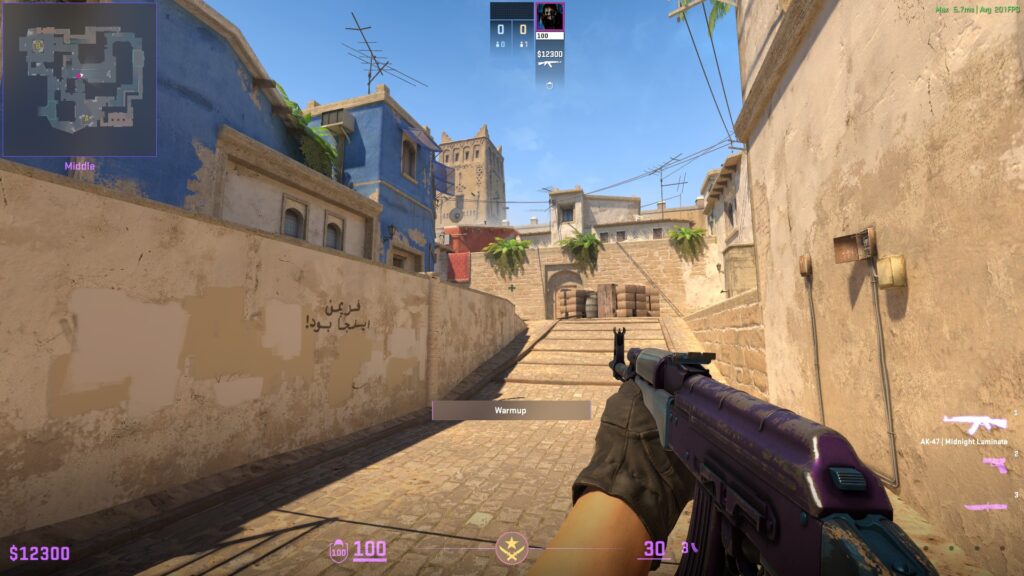
The familiarity of this configuration makes it a popular choice among CS2 viewmodel for individuals who have spent countless hours mastering previous Counter-Strike releases.
You can easily replicate this exact feel without using console commands by simply selecting the Classic preset from the standard video options menu.
Showing off your skins with the couch preset
Skin collectors and casual players frequently lean toward configurations that maximize the visual size of their expensive weapon finishes on screen.
By adjusting your coordinates to viewmodel_fov 68, viewmodel_offset_x 2, viewmodel_offset_y 2, and viewmodel_offset_z 2, your agent holds the gun high and close to the camera.
This specific alignment makes every sticker craft, pattern template, and holographic detail pop out beautifully during normal gameplay and weapon inspection animations.
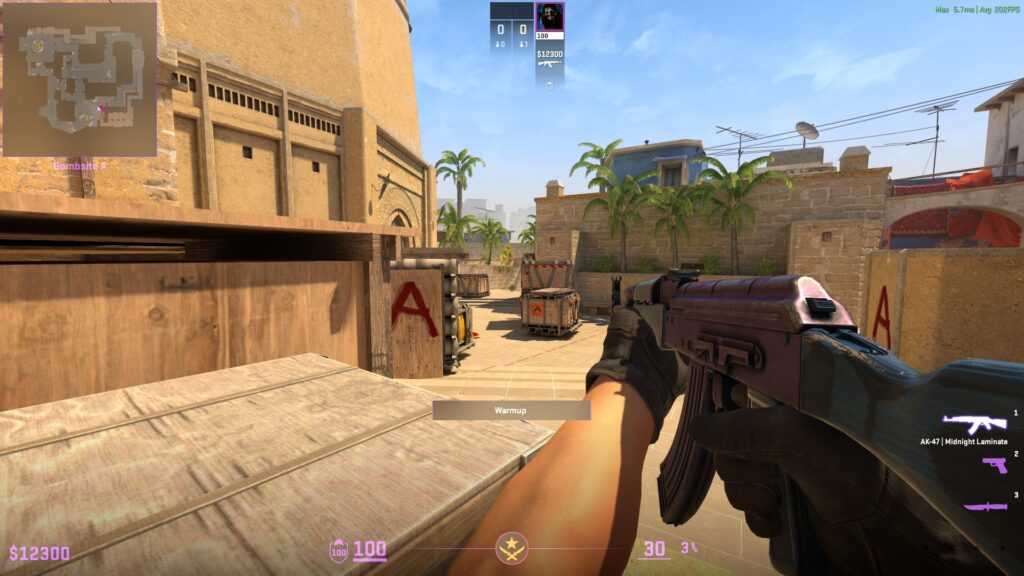
While this ranks highly among visually appealing CS2 viewmodel, it does block a significant portion of your display and might obscure enemies crouching in lower elevations.
Gamers who prioritize aesthetics over raw competitive advantages will find this setup incredibly satisfying when running around casual matchmaking servers.
Flipping things around with the left-handed approach
Swapping your gun placement between your left and right hand provides a strategic visual adjustment when holding tight angles or peeking around specific obstacles.
Pressing your designated hotkey or typing the switchhands command into the console flips your arm placement across your display instantly, accommodating left-eye dominant players. By default, this would be the H key on your keyboard. However, you can change this either in Settings > Keyboard/Mouse > Weapon Keys > Switch Viewmodel Left/Right Hand or by typing the bind [key] “switchhands” command in your console.
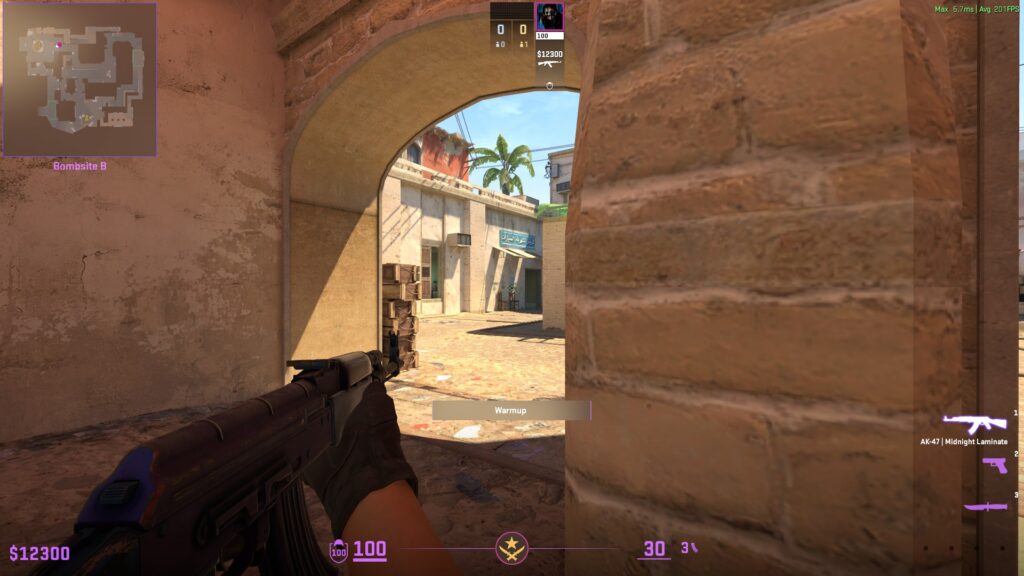
Left-handed configurations represent a highly subjective category of CS2 viewmodel, as they completely mirror your visual experience and alter your physical screen balance.
Players should note a critical mechanical detail regarding how the game handles hand toggles during active matches compared to previous franchise entries.
Unlike in CS:GO, swapping hands now triggers a short re-equip animation that temporarily stops you from firing, meaning you should never toggle your handedness while engaging an opponent.
Copying the best CS2 viewmodel from top professional players
Analyzing professional preferences regarding CS2 viewmodel demonstrates a clear trend toward high field of view settings that prioritize visual clarity over aesthetics.
Testing out proven setups used by tournament champions allows you to find a perfect balance without spending hours tinkering with individual coordinate numbers.
Looking at the absolute highest tier of mechanical talent reveals that the game’s best players largely agree on the optimal way to configure their screens.
The standard layout of ZywOo, s1mple, m0NESY, and donk
Legendary stars like ZywOo, s1mple, m0NESY, and donk all run identical settings built around viewmodel_fov 68, viewmodel_offset_x 2.5, viewmodel_offset_y 0, and viewmodel_offset_z -1.5.
This confirms that pushing the weapon model far to the right and slightly down remains the undisputed standard for professional CS2 viewmodel today.
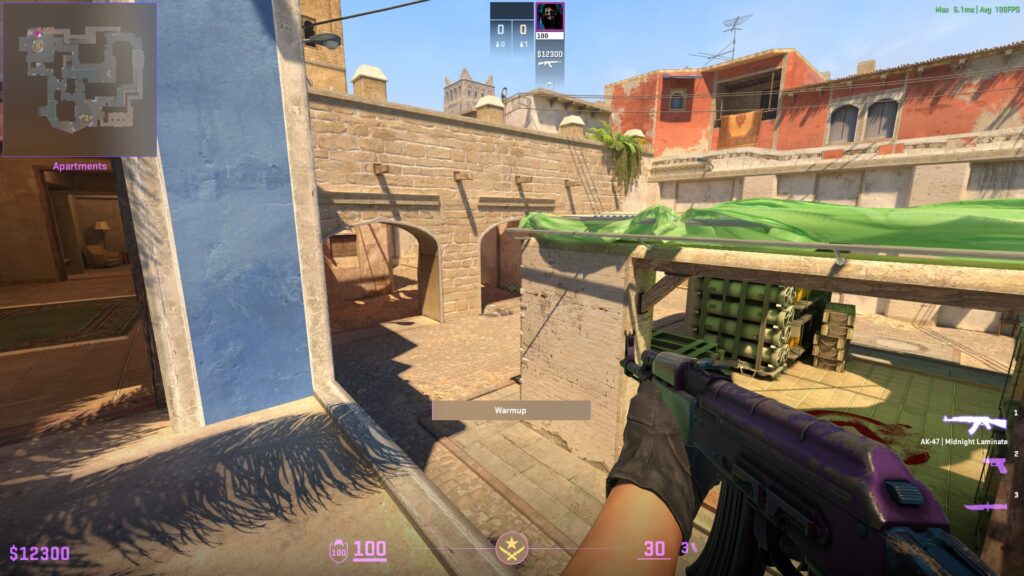
AWP specialists and aggressive entry players alike find success with these numbers because they offer an unobstructed view of the battlefield during high-pressure clutch situations.
If you want a reliable configuration that has been proven to win major championships, mirroring this 4-piece coordinate block is the smartest decision you can make.
NiKo and his aggressive rifling setup
While most professionals stick to the universal standard, one of the greatest riflers in the history of the franchise opts for a slightly different visual approach.
NiKo prefers a somewhat tighter configuration featuring viewmodel_fov 64, viewmodel_offset_x 1, viewmodel_offset_y 2, and viewmodel_offset_z -1.5.
This specific arrangement brings his rifle closer to the center of the screen, which suits his aggressive crosshair placement during site entries and raw aiming duels.
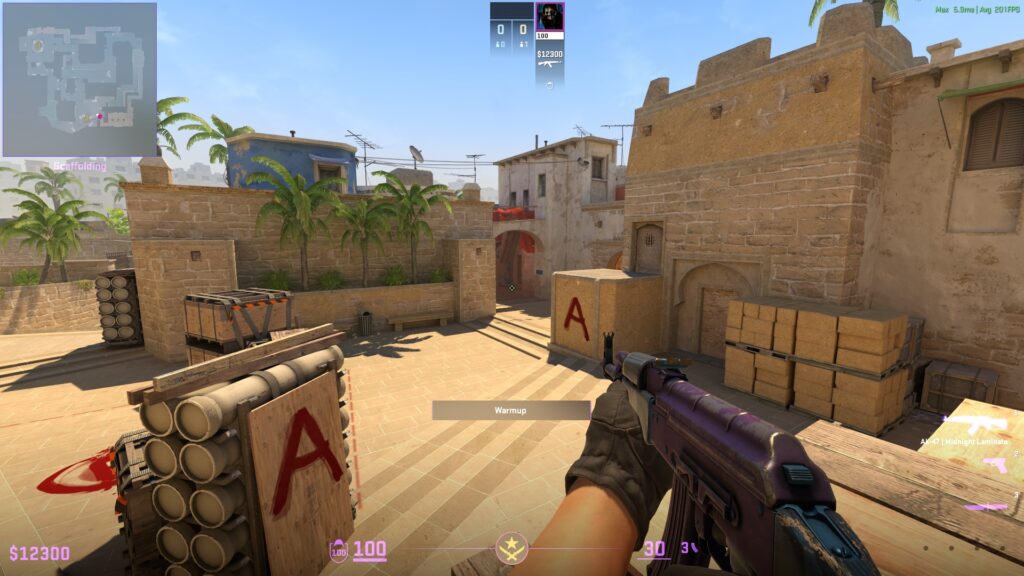
Riflers who rely heavily on visual feedback from their weapon barrel during sustained spray downs might find this variation of CS2 viewmodel incredibly comfortable.
Testing out this forward-shifted setup provides a great alternative if the standard professional configuration feels too distant or disconnected from your crosshair.
