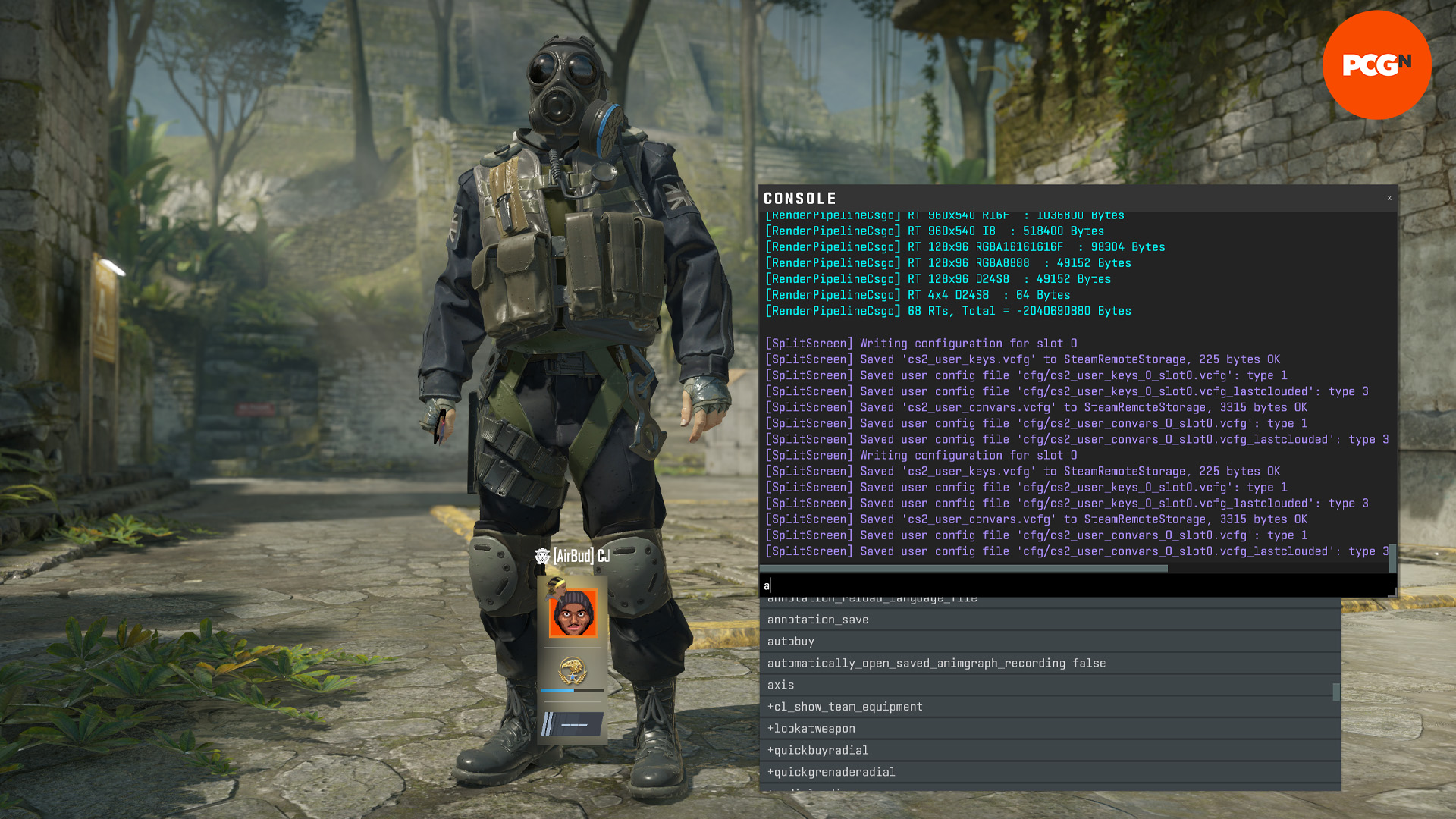





Mastering CS2 console commands is the direct continuation of a competitive culture that started over two decades ago. Tweaking the developer interface has been a fundamental rite of passage since the earliest days of CS 1.6. Back in the early 2000s, competitive players quickly realized that the default menus hid crucial settings. This realization sparked a massive community focused on typing obscure text strings to adjust netcode, crosshair thickness, and visual rendering.
That exact same philosophy dominated the CS:GO era, where having a customized configuration file was practically mandatory for high-level matchmaking. Today, the jump to the Source 2 engine has altered the landscape significantly. While many legacy tweaks are gone, discovering the right developer inputs remains the absolute best way to bypass the standard user interface and maximize hardware performance.
Essential CS2 console commands for modern setups
The transition to the new engine brought completely revamped networking logic and rendering mechanics, hence CS2 console commands became essential. Because of this massive technological shift from the old days of CS, players need a fully updated list of inputs to stay competitive. Setting up a configuration correctly right now requires focusing on telemetry, framerate stability, and visual clarity.
Here is a quick breakdown of the most impactful CS2 commands available for active matchmaking:
| Command | Function | Why it matters |
| fps_max 0 | Uncaps the frame rate | Removing the frame limit ensures the lowest possible input delay during crucial firefights. |
| cl_hud_telemetry_ping_show 2 | Displays ping constantly | Helps diagnose connection issues without constantly opening the scoreboard. |
| r_show_build_info 0 | Removes the version watermark | Erases the distracting text in the bottom left corner of the screen. |
| snd_voipvolume 0.5 | Lowers teammate voice volume | A fast way to hear footsteps better without completely muting noisy teammates. |
| cl_hud_radar_scale 1.15 | Increases radar scale | Spotting red dots on expansive maps like Nuke or Ancient becomes significantly easier. |
Tracking performance with telemetry
Veteran players immediately noticed the absence of the classic network graph when the new game launched. Valve replaced it with a much cleaner telemetry system that can be toggled via the console. Activating the new telemetry inputs is the only reliable way to monitor packet loss and frame times natively. Combined with proper settings of the game, this can ensure that your performance never falls short.

Using inputs like cl_hud_telemetry_frametime_show 2 in your CS2 console commands prompt forces the game to display frame drops in the top right corner. Players can also configure these settings to only appear when the connection actually struggles. This keeps the screen completely clean during smooth rounds.
Optimizing audio and visual elements
Counter-Strike 2 looks gorgeous, but excessive visual flair can be incredibly distracting. Using r_show_build_info 0 is an absolute must for players who want a pristine interface. The excessive visuals are something pro settings also confront, and we see plenty of pro players actually lower their graphics on purpose for more visual clarity.
Audio mixing is another crucial element to tweak. Typing volume 0.5 in CS2 console commands sets the master game volume to half, protecting hearing after a loud round. If teammates are screaming during a clutch situation on Dust II, dropping snd_voipvolume down to 0.2 keeps them quiet while still allowing essential callouts to come through.
A brief nod to retired CS:GO and CS 1.6 legends
Players jumping back into the franchise often attempt to enter legacy configurations into CS2 console commands out of pure muscle memory. It is important to know that many older tweaks simply do not exist in the current engine.
Decades of muscle memory will not bring back the classic commands that manipulated weapon bobbing or specific visual rendering. For instance, the highly requested cl_bob_lower_amt from the CS:GO era is permanently retired, meaning gun models now move with the new physics engine. Similarly, the old instant-swap cl_righthand 0 input from CS 1.6 and CS:GO was replaced by an animated key bind system built directly into the game menu.
Making your CS2 console commands permanent
Typing these inputs every single time the game launches is incredibly tedious. The best way to save a customized configuration is by creating an autoexec file inside the game directory.
By placing all preferred CS2 console commands into a text document labeled autoexec.cfg, the game will read and apply them automatically upon startup. This guarantees the perfect radar size, audio levels, and framerate settings are always ready the second a match begins on Mirage or Inferno.
