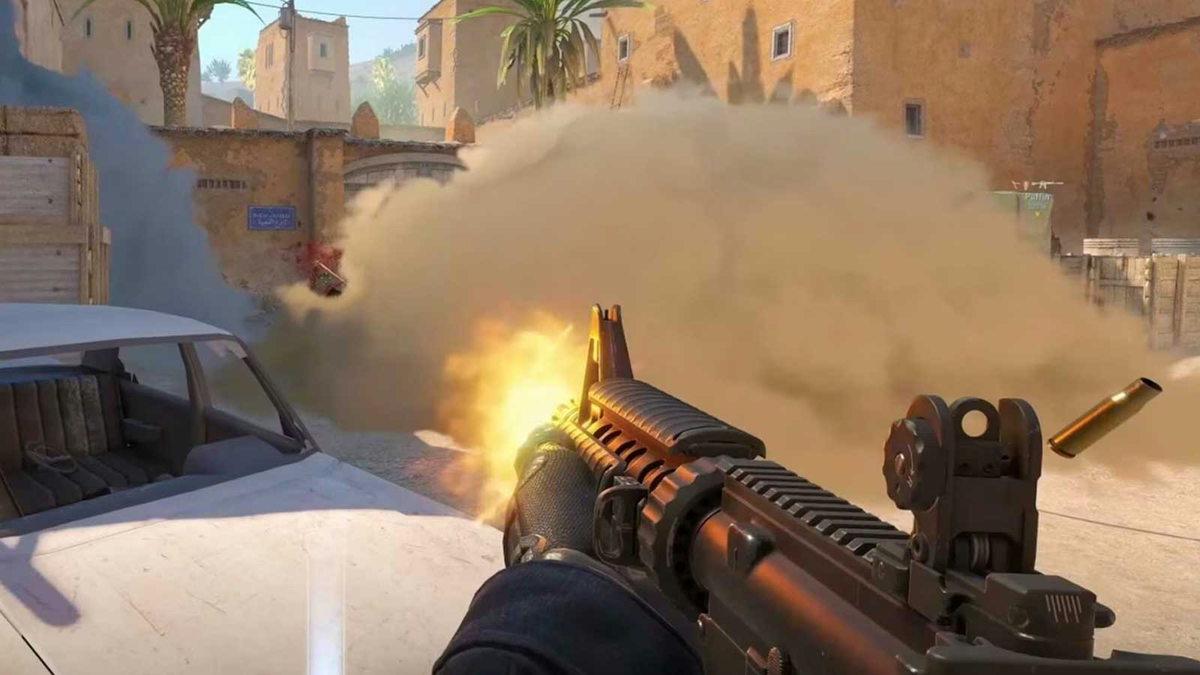




Best CS2 settings come down to one trade-off: Performance versus quality.
Most casual players do not need a pro config. They need a setup that feels clear, stable, and easy to trust. That means better visibility, cleaner sound, comfortable controls, and fewer distractions.
A prettier game is not always a better game. Higher visual quality can make CS2 look nicer, but it can also add clutter or hurt performance. Lower settings can improve responsiveness, but going too low can make the game look worse without helping much.
That is why the best CS2 settings usually sit in the middle. You want enough quality to read the game clearly, and enough performance to keep it smooth.
Best CS2 settings at a glance
| Area | Recommended starting point | Why it may help |
|---|---|---|
| Display mode | Fullscreen | Usually feels more responsive and avoids unnecessary display issues |
| Refresh rate | Highest available | Makes motion smoother and easier to track |
| V-Sync | Off | Helps avoid added input delay |
| Resolution | Native first | Keeps the image cleaner and easier to read |
| Boost Player Contrast | On | Makes player models stand out more clearly |
| NVIDIA Reflex | On, if available | Can improve responsiveness on supported systems |
| Mouse DPI | 400 or 800 | Gives a stable baseline that is easier to build muscle memory on |
| Zoom sensitivity | 1.00 | Keeps scoped aim feeling predictable |
| Crosshair | Simple and static | Reduces screen clutter in fights |
| Radar | Larger and more zoomed out | Gives faster info on rotations and spacing |
| Music volume | Low | Helps footsteps, utility, and bomb cues stand out |
| Push-to-talk | Easy to reach key | Makes comms faster and less awkward |
Best CS2 settings start with performance
A stable game is easier to trust, which is why performance should come before everything else. Just take a look at most professional player settings and you will understand why.
If CS2 feels choppy, delayed, or inconsistent, the rest of your settings will not feel right either. Fullscreen mode, correct refresh rate, and V-Sync off should come first. That is the base of the best CS2 settings for regular players.
The goal is simple: Make the game feel smooth, then improve clarity from there. Do not tweak ten things at once. Fix performance first. Steam’s own support guidance around performance problems still points players toward resolution and video-setting changes before anything more exotic.

CS2 graphics
Good CS2 graphics should improve visibility first, not just make the game look prettier.
A lot of people either max out all CS2 graphics settings or put everything on low. Neither is automatically correct. The better approach is to lower the options that add visual fluff and keep the ones that help readability. This also works in favor for players that are just on the cusp of system requirements for the game.
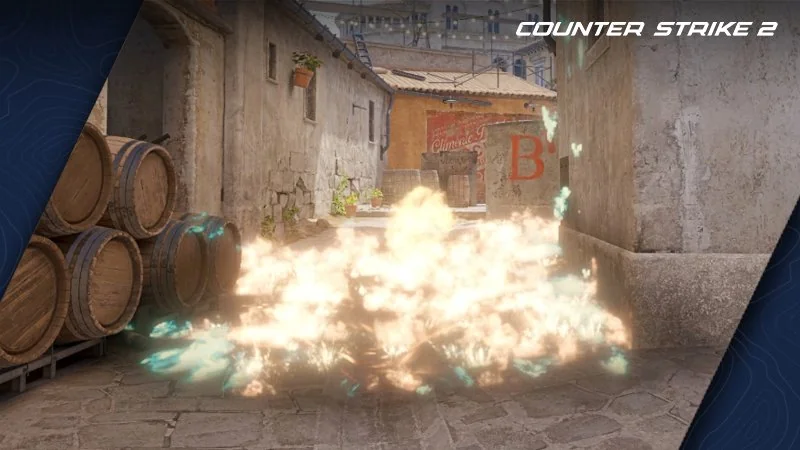
Native resolution is a good starting point. It keeps the image cleaner and makes the game easier to read. From there, adjust your CS2 graphics based on what helps you see enemies faster, not what simply makes the game look prettier.
Credit: Reddit
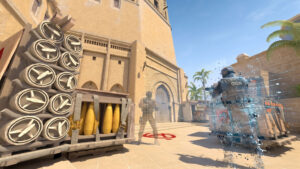
Player contrast matters. Clear shadows can matter. Random visual extras usually matter less. If a setting looks nice but does not help readability, lower it first. That is usually where the best CS2 settings for normal players start to separate from random copied presets.
Best CS2 settings for mouse and crosshair
Stable mouse settings help build muscle memory, and a simple crosshair keeps your screen easier to read.
A lot of inconsistency starts with the mouse. The biggest mistake is changing sensitivity too often. One bad match should not mean a new setup. The best CS2 settings for aim are usually the ones you leave alone long enough to actually learn.
Start with 400 or 800 DPI. Then pick an in-game sensitivity that feels controlled, not too fast and not too heavy. Keep zoom sensitivity at 1.00 unless you have a clear reason to change it.
For crosshair, keep it simple. A static crosshair is easier to read and less distracting. You do not need something flashy. You need something clear.
Controls
Comfortable binds reduce hesitation, especially when you need utility or comms quickly.
Your grenade binds, crouch key, walk key, and push-to-talk bind should all feel easy to reach. If you have to think about your binds mid-round, the setup is already working against you.
That is why many regular players benefit from individual grenade binds. It saves time and removes mistakes. The best CS2 settings for controls do not need to be fancy, they just need to feel automatic and come natural to your playstyle. Comfort matters more than cleverness.
Best CS2 settings for audio
Cleaner audio makes important cues easier to catch before the round gets chaotic.
If your sound is cluttered, you miss information. Footsteps, utility, reloads, bomb taps, and drops all matter. It’s not always about what you see. There is plenty about what you hear clearly in the mid-game chaos.
Use headphones. Lower music volume. Keep voice chat below game sound. Make sure footsteps and utility are never getting buried by menu music, Discord, or loud teammates. Good audio settings should feel clean, not dramatic.
Communication
Simple voice settings help you give cleaner information without losing focus.
Communication is part of your setup too. A bad push-to-talk key slows your calls. Bad mic volume makes you harder to understand. Loud teammates can cover important in-game sounds. All of that affects consistency.
Keep this simple. Use a comfortable push-to-talk key, a clear mic level, and manageable teammate volume. The best CS2 settings for communication are the ones that make comms easy without breaking your focus.
Radar and HUD
A larger radar gives useful map info faster, even when teammate comms are poor.
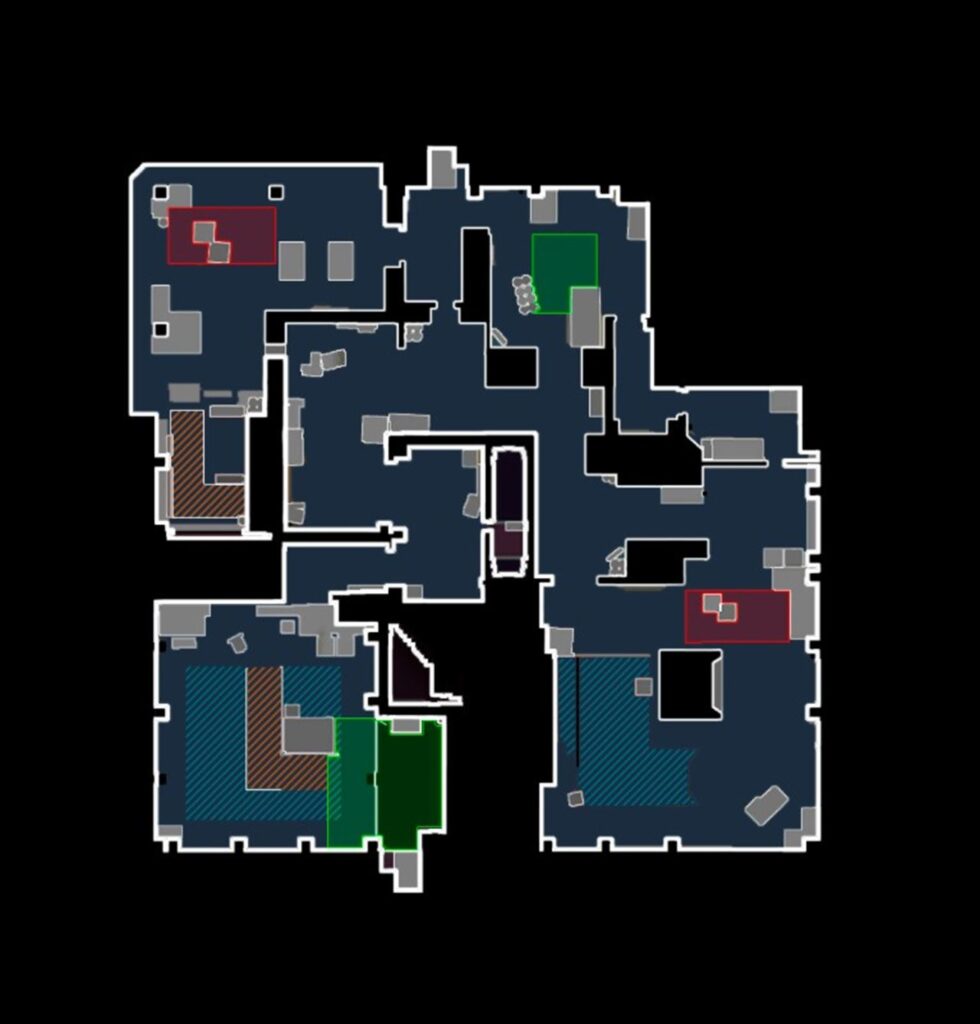
A lot of casual players waste useful information by ignoring the radar. Make it larger. Zoom it out enough to read rotations, spacing, and bomb position quickly. This is one of the easiest improvements you can make, and it is part of the best CS2 settings conversation even if players often overlook it.
HUD changes should follow the same rule. Important information should be easy to catch at a glance. If your radar is too small to help, it is mostly decoration.
Launch options
Launch options can be useful, but only when they solve a real problem.
Too many players still assume the best CS2 settings are hidden in a giant launch-option string. For most players, they are not. Steam describes launch options as a way to override a game’s internal settings before launch, which makes them useful for specific purposes, not as a magic fix for everything.
A few examples are still worth knowing:
-novid: Skips the intro video, so CS2 opens faster.-console: Enables the developer console on startup, useful if you regularly use commands or configs.-fullscreen: Useful if the game keeps launching in the wrong display mode.-autoconfig: A troubleshooting option that resets video settings and can help if the game is misbehaving, but it is not something most players should leave on permanently.
That is why the best CS2 settings approach here should stay simple. Use launch options when they have a clear purpose. Do not treat them like free FPS. For most casual players, something as light as -novid -console is enough, and many players do not need any launch options at all. Steam’s support pages still frame launch options mainly as setup and troubleshooting tools, not as a guaranteed performance booster.
