






Short answer: Download Valorant from the official source for your platform (Riot on PC, Microsoft Store on Xbox, or the PlayStation Store on PS5), install it, let the first update finish, then sign in or link your Riot account. On PC, Riot Vanguard is part of the install and you’ll usually need to restart before the game will launch.
Valorant is Riot Games’ tactical 5v5 shooter where aim matters, but decisions matter just as much. Installing it is normally quick, yet a lot of first-time setups fail for boring reasons: someone grabs a random “download” link, the drive runs out of space halfway through the patch, or Vanguard installs correctly but never starts because the PC wasn’t restarted.
Below you’ll find step-by-step Valorant download guides for PC, Xbox Series X/S, and PS5, plus quick notes on download size and install time, the most common fixes, and an FAQ covering the questions players usually search right before (or right after) installing.
How to download Valorant on PC – Step-by-step guide
What you need on PC: a stable internet connection, Windows admin permission to install Riot Client and Vanguard, and enough storage. The installer itself is tiny (around 66 MB), but the full Valorant install typically ends up around 45–55 GB. To avoid failed installs and leave room for patches, it’s smart to have at least 70 GB free before you start.
Download size & time (PC): After you download the small Riot Client installer, it will fetch the rest of Valorant’s core files during installation. Depending on your current game version and recent updates, the total download can land anywhere from roughly 25–70 GB. On Wi-Fi, patch days can feel slower, so give it time and don’t start the install if your drive is nearly full. Also remember: Vanguard may require a restart before Valorant will launch.
Go to the official Valorant download page
Start with the official Valorant download page. This is the safest source for the installer and avoids fake “mirror downloads” that can lead to corrupted files or worse.

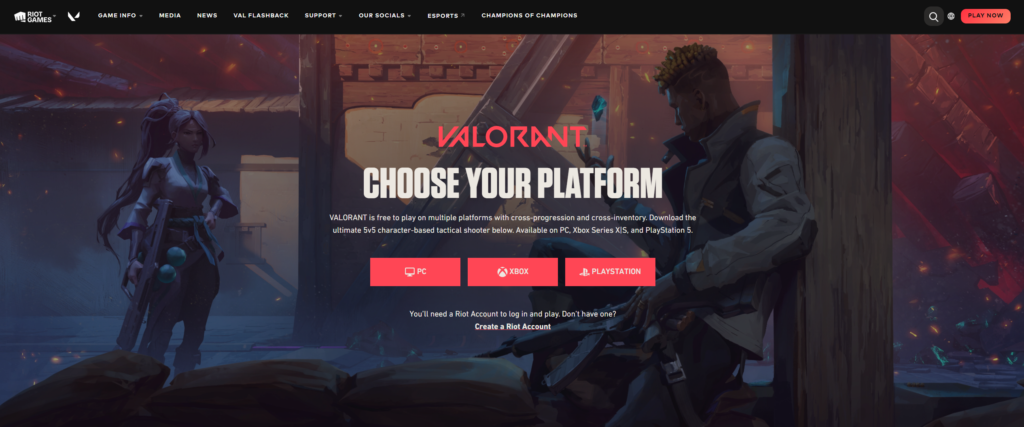
Download the Riot Client installer
Click download and save the installer. This file is small – it’s just the Riot Client setup, not the full game.
Run the installer and install Riot Client
Open the downloaded file and follow the prompts to install the Riot Client. If Windows asks for permission to make changes, approve it. If you have more than one drive, consider installing to the drive with more free space.
Sign in (or create) your Riot account
When Riot Client opens, sign in with your Riot account. If you don’t have one yet, create an account during this step. Valorant uses Riot accounts across platforms, so it’s worth using the one you plan to keep.
Install Valorant from Riot Client
Find Valorant in the Riot Client and click Install. You may see options for install path, language, and update settings – set them how you prefer, then start the install.
Let Riot Vanguard install and restart if prompted
During installation, Riot Vanguard (Valorant’s anti-cheat) will also install. Vanguard is required on PC. If the installer asks you to restart your computer, do it – skipping the restart is one of the most common reasons players get launch errors.
Launch Valorant and finish updates
After rebooting, open Riot Client and press Play. Let the game fully patch before you queue. If you can’t log in or matchmaking is acting strange, check your Valorant server status page to confirm whether there’s an outage.
If you want to see the full PC flow (including the “Play for Free” button, selecting PC, installing Riot Client, and the Vanguard restart), this walkthrough matches the steps above.
Prefer a faster, straight-to-the-point version of the same PC install? This short guide covers the essentials, including changing the install location in advanced options.
One last PC tip: if you ever suspect your problem is patch-related rather than your setup, look at the server status first—then move on to troubleshooting so you don’t waste time fixing something that isn’t on your end.
How to download Valorant on Xbox Series X/S – Step-by-step guide
What you need on Xbox: enough storage space and a stable connection. The initial Valorant download on Xbox Series X|S is usually around 30 GB, but it can grow over time with patches and big updates. To avoid running out of space mid-install, it’s a good idea to have at least 50 GB free before you start.
Download size & time (Xbox): Expect a large download, and remember that the size can change as new updates get bundled into the install. Patch days can take longer than usual, and the first launch may apply additional updates or verification before you can play. For the most accurate current size, check the Valorant listing in the Xbox Store (or start the download and view the install details), since the exact number can shift with new content.
Open the official Valorant store page for Xbox
Use the official Valorant on Xbox page, or go directly through the Microsoft Store listing for Valorant.
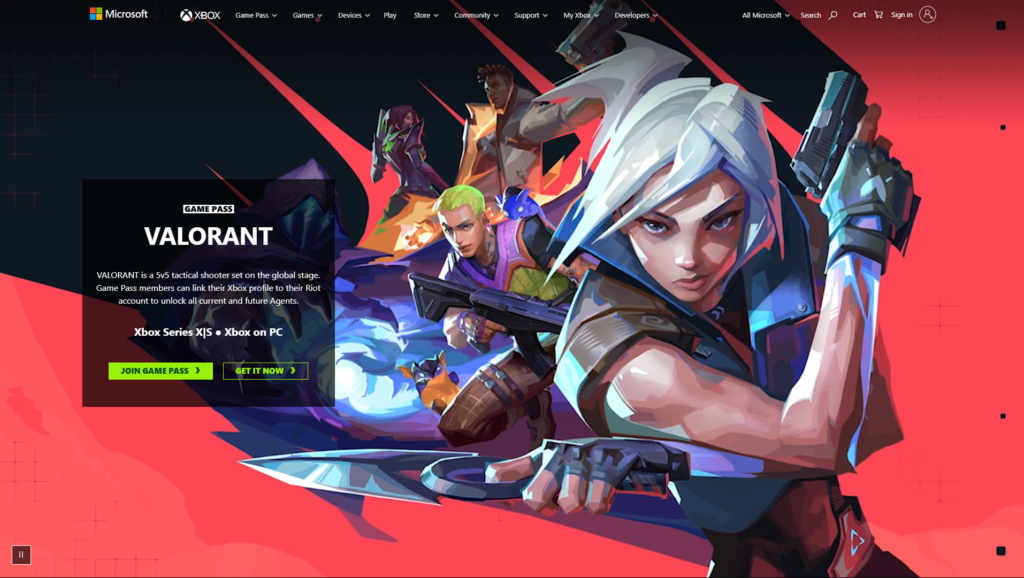
Get the game and start the download
Select Get (or Install) and confirm. If you have multiple storage options (internal vs expansion), choose where you want the game installed.
Let the install finish and allow the first update
After the base download, Valorant may run an update pass when you first launch. Let it finish. If the progress looks stuck, give it a minute—file verification can look “frozen” even when it’s working.
Launch Valorant and sign in with your Riot account
Open the game and follow the on-screen steps to sign in or link your Riot account. If you already play on PC, using the same account keeps things consistent.
Check for server issues if you can’t connect
If you get connection errors or long login queues, check your Valorant server status page first. It’s the quickest way to confirm if the problem is local or widespread.
If you want a visual walkthrough on Xbox (searching in the store, downloading, and launching), this video follows the same flow as the steps above.
After you’re installed, the next challenge usually isn’t downloading – it’s deciding what to play. Our Valorant agent tier list is a good shortcut if you want a strong starting point without overthinking it.
How to download Valorant on PS5 – Step-by-step guide
What you need on PS5: enough free storage and a stable connection. Valorant’s initial download on PS5 is usually around 26–30 GB, but the total size can grow over time with patches and major updates. To avoid installs failing mid-way, it’s smart to have at least 50–60 GB free before you start.
Download size & time (PS5): The PlayStation Store download is only the beginning – new updates can increase the total install size, and the first launch may apply extra updates or file checks before you can play. Patch days can take longer than expected, so let everything finish even if it looks like it’s “stuck” for a bit. For the most accurate current size, check the Valorant listing in the PlayStation Store right before you download.
Open the official Valorant page on PlayStation
Use the official Valorant on PlayStation page to find the correct store listing.
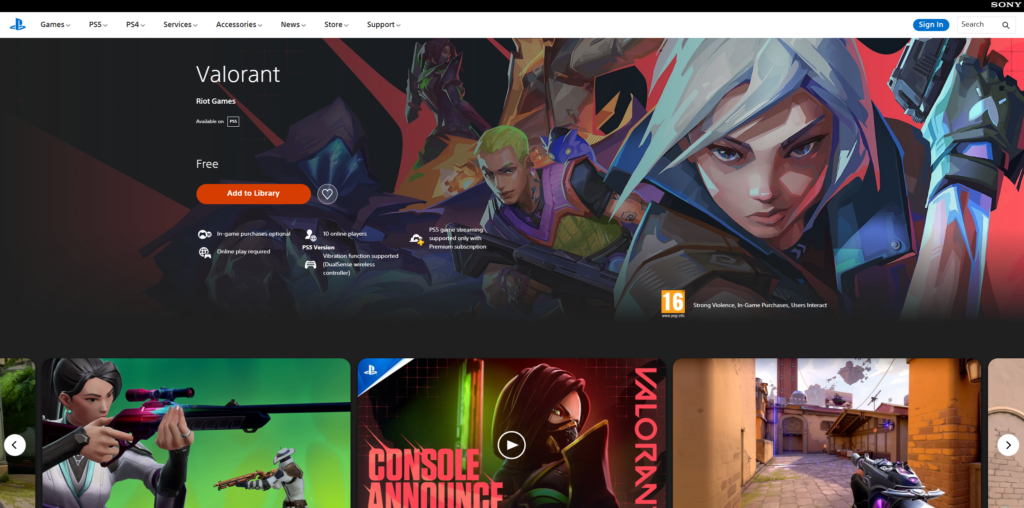
Download Valorant from the PlayStation Store
Select Download and confirm the install. If your PS5 storage is nearly full, clear space first – big installs can fail late if the console can’t complete patching.
Launch Valorant and complete updates
When the download completes, launch Valorant and let it finish any required updates. If you launch too early, you may be forced back to the update screen.
Sign in or link your Riot account
Follow the prompts to sign in or link your Riot account. If you already play on PC, using the same account helps keep everything in one place.
Confirm server status if login fails
If you can’t connect, check your Valorant server status page first. If servers look fine, a console restart and router restart often fixes first-launch connection issues.
Here’s a simple PS5 walkthrough showing how to find Valorant in the PlayStation Store, download it, and launch it once it’s installed.
Once you’re in, you’ll quickly bump into the shop rotation. If you care about skins or bundles, our Valorant store tracker is built for exactly that.
Valorant download sources at a glance
If you only remember one rule: download from official sources. Here’s the quick map of where to get the correct version for your platform.
| Platform | Official download source | What you should expect |
|---|---|---|
| PC | Official Valorant download page | Riot Client install + Riot Vanguard install + likely restart |
| PC (alternate) | Valorant on Epic Games Store | Convenient if you already use Epic; still uses Riot account |
| Xbox Series X/S | Valorant on Xbox / Microsoft Store listing | Large download + first-launch updates |
| PS5 | Valorant on PlayStation | Large download + first-launch updates |
PC specs for Valorant (plus the Windows 11 settings that can block launches)
Valorant is known for running well on a wide range of PCs, but “runs” and “feels good in gunfights” are two different things. If you want smoother aim duels, prioritize stable FPS and lower input stutter over fancy graphics.
| Target | CPU | GPU | RAM | VRAM | Notes |
|---|---|---|---|---|---|
| Minimum (playable) | Intel i3-540 / AMD Athlon 200GE | Intel HD 4000 / AMD Radeon R5 220 | 4 GB | 1 GB | Lower settings, casual play |
| Recommended (smooth) | Intel i3-4150 / AMD Ryzen 3 1200 | NVIDIA GeForce GT 730 / AMD Radeon R7 240 | 8 GB | 1 GB | More stable in fights |
| High FPS (144+) | Intel i5-9400F / AMD Ryzen 5 2600X | NVIDIA GTX 1050 Ti / AMD Radeon R7 370 / Intel Arc A310 | 8–16 GB | 2+ GB | Best for high refresh monitors |
Windows 11 note: Riot Vanguard may require TPM 2.0 and Secure Boot enabled. If Valorant installs but refuses to launch, these settings are worth checking early.
Troubleshooting: install errors, Vanguard issues, and stuck downloads
When something breaks, it usually breaks in predictable ways: Vanguard errors, installer permission issues, or downloads that look stuck while verifying files. For official fixes, start with VALORANT Support and use Installation and Technical Help for setup-specific problems.
- Vanguard won’t initialize: restart your PC first. If it continues, check Secure Boot/TPM settings (Windows 11) and confirm Vanguard is installed.
- Installer won’t run: run as administrator, then temporarily close apps that may block installs.
- Download looks frozen: pause/resume once, then restart Riot Client/console if needed.
- Connection problems after install: check server status before doing anything else.
If you want a quick “is it happening to everyone?” check during patch days, r/VALORANT can be useful. It’s not a replacement for support, but it’s good for spotting widespread issues fast.
FAQ: Valorant download questions
FAQ: Valorant download questions
Is Valorant free to download on PC, Xbox, and PS5?
Yes—Valorant is free-to-play. You can download and install it without paying. Purchases are optional and usually cosmetic (skins, bundles, battle pass), not required to access core modes.
What is the safest way to download Valorant on PC?
Use the official Valorant download page. It provides the correct Riot Client installer and reduces the risk of corrupted files or fake installers.
Do you need PS Plus or Xbox Game Pass to play Valorant?
In most cases, free-to-play games on console don’t require a paid subscription to play online, but rules can vary by platform, region, and account status. If you’re prompted for a subscription, double-check you’re downloading the official Valorant listing and that your console account is set up correctly.
How long does it take to download Valorant?
It depends on your download speed and whether you’re installing on a patch day. On PC, the Riot Client installer is quick, but the full game download takes longer and you may need a restart for Vanguard. On console, the base download can be large and the first launch may apply extra updates before you can play.
Why does Valorant require Riot Vanguard on PC?
Riot Vanguard is Valorant’s anti-cheat. Valorant won’t launch on PC without it installed and running. If Vanguard isn’t active (or Windows security settings block it), you’ll typically see launch errors until it’s resolved.
Where should I go if my Valorant installation fails?
Start with VALORANT Support. For download and setup issues specifically (installer errors, Vanguard problems, technical checks), use Installation and Technical Help. If you want to confirm whether others are dealing with the same issue right now, r/VALORANT can be useful during patch days.
What to do next after you download Valorant
Once Valorant is installed and launching correctly, the next step is making the game feel good and figuring out what to focus on first. A lot of new players bounce between agents, settings, and queues without building a simple foundation – so keep it practical.
Start by bookmarking your Valorant hub. It’s the easiest way to find guides without going back to Google every time you have a question. If you want a quick direction on who to play, our Valorant agent tier list helps you pick a small agent pool that’s actually strong right now, instead of learning 10 agents and mastering none.
If you care about skins and bundles, the shop rotates constantly. Rather than logging in every day just to check, use our Valorant store tracker to follow rotations and plan purchases. And when the game feels “off” (queue issues, login problems, weird delays), check our Valorant server status page first – there’s no point troubleshooting your setup during a real outage.
Curious how active the game is overall? Our Valorant player count breakdown gives context on popularity and activity trends. It’s especially useful if you’re deciding whether to grind ranked, come back after a break, or just want a quick snapshot of how healthy the player base looks.
Finally, if you want to stick to official sources for updates and announcements, keep the Valorant official website bookmarked. For the broader publisher ecosystem, you can also visit Riot Games. If you just want background information (release history, overview, references), the Valorant Wikipedia page is a quick summary.
