



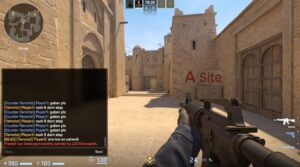


FACEIT Finder is a free FACEIT stats checker that lets you search a public FACEIT profile using a Steam URL or SteamID64 and instantly view key data like level, ELO, recent matches, K/D, and headshot percentage.
CS2 players use FACEIT Finder to scout teammates, check opponents, spot suspicious accounts, and track performance trends before queuing.
How to use FACEIT Finder: paste a Steam profile link into the search bar, open the profile, and review the most important indicators before you hit queue.
In a few seconds, you can check:
- FACEIT level and ELO (where the player sits on the ladder)
- Recent matches (activity and current form)
- Core performance stats like K/D and headshot percentage
- Steam context like hours, profile details, and linked account info
You can run a lookup directly on the official FACEIT Finder site.
Instead of switching between FACEIT and Steam, you get a single overview that helps you understand who you’re playing with or against in CS2.
If you play across multiple games, it can also help you keep tabs on profiles for titles like Dota 2, PUBG, League of Legends, and TF2, without jumping between a bunch of separate pages.
What is FACEIT Finder?
FACEIT Finder is a profile lookup tool that gathers publicly available FACEIT and Steam data into one view. It saves time by showing competitive stats, match history, and account context in a format designed for quick pre-game decisions.
Most players rely on it for three things: teammate screening, opponent scouting, and tracking their own improvement over time.
What FACEIT Finder shows at a glance
- FACEIT level and ELO so you know where someone sits on the ladder
- Recent matches to spot activity and current form
- Core performance stats like K/D and headshot percentage
- Steam profile context like hours, badges, and linked info
- Friends and network signals that can add context to “new” accounts

It won’t predict how someone plays today, but it does stop you from going in completely blind.
How to use FACEIT Finder
If you want a simple routine you can repeat every time you queue, this is it:
- Paste the Steam profile URL (or SteamID64) into FACEIT Finder
- Check FACEIT ELO and level to understand the baseline
- Scan recent matches for activity spikes, long breaks, or consistency
- Look at K/D and HS% to see style and mechanical trends
- Use Steam hours as context, not as proof, but as a sanity check

If you only do one thing: review recent matches + ELO trend. It tells you more than a lifetime stat line.
If you use FACEIT Finder the same way every time you queue, it becomes a five second habit instead of a rabbit hole.
Performance tracking that actually helps you improve
It’s easy to stare at stats and still not get better. The trick is turning a number into a decision. FACEIT Finder makes it faster to spot patterns, especially in CS2 where small habits add up over a long grind.
- FACEIT ELO: useful for direction (up, down, stuck), not as a daily mood meter
- Headshot percentage: a rough signal for crosshair discipline and weapon comfort
- HLTV style rating: helpful as a broad “impact” snapshot across a sample
- K/D: shows whether your aggression is paying off or just feeding

A practical example: if your headshot percentage stalls for weeks, stop changing sensitivity every day and run a short aim routine after warmup, then review two rounds where your crosshair is late. If your K/D tanks on specific maps, you probably need a simpler role, earlier info, or better utility timing on that map.
If you’re newer to FACEIT itself (not FACEIT Finder), the video below explains how FACEIT works, why people use it, and what the ELO system feels like compared to Premier. It’s a good foundation before you start judging stats.
Once you understand how FACEIT queues and ELO swings work, FACEIT Finder becomes more useful. You stop treating every number as “truth” and start using it as context.
If you’re just getting started with competitive CS2, our CS2 guides break down ranking systems, map pools, and improvement routines.
Steam integration for a fuller picture
Steam data is where you get extra context. It will not prove anything on its own, but it helps you ask the right questions. Hours by title, badges, and general profile health are often enough to spot obvious outliers.
Compare players before you stack a lobby
The comparison view is perfect for quick decisions. If you’re choosing between two people for a stack, line up their recent matches, ELO direction, and core stats. If one player is active and stable while the other has big swings and long gaps, you already know who is more likely to be consistent today.
Better team building, fewer headaches
FACEIT Finder can help you build a better group because it highlights whether people are playing regularly, whether their numbers are trending, and whether their style fits what your stack needs. It’s not about “finding the best aimer.” It’s about reducing mismatches that ruin games: five aggressive players, nobody holding space, nobody willing to call, nobody trading.
Multi title support beyond CS2
A lot of competitive players rotate between games depending on the season. FACEIT Finder is mainly a CS2 tool for most people, but having a single hub for multiple titles can still be convenient if you split time between CS2 and games like Dota 2, PUBG, League of Legends, or TF2.
FACEIT vs CS2 Premier
This is where many players land: Premier is convenient, FACEIT often feels more serious. Queue times, map control, anti cheat expectations, and the general vibe can be different depending on rank and region.
If you want Valve’s official updates and info on Counter-Strike, the safest reference is the official Counter-Strike site.
This comparison video is helpful if you’re deciding whether it’s worth grinding FACEIT, or if Premier fits your goals better right now. It also gives you language for what “better matches” actually means.
If you do move between systems, FACEIT Finder is still useful because it keeps your scouting and tracking consistent. Your routine does not change just because the queue button does.
Practical ways to climb using FACEIT Finder
Here’s a climb plan that feels boring, but works. The point is to use FACEIT Finder to pick the right two improvements, not to drown in stats.
- Pick one map focus per week. Track your stats on that map and build a simple role you can repeat.
- Review your last 5 matches. Look for one mechanical issue (late crosshair, panic spray) and one decision issue (bad peek, no trade).
- Set a small measurable target. For example: keep a positive K/D on Mirage for 10 matches, or push headshot percentage up by 1 to 2 points over two weeks.
- Use ELO as feedback. If ELO drops but your fundamentals improve, keep going. If ELO rises but your play is messy, you’re borrowing luck.
- Scout smarter, not longer. Before a stack, check recent matches and activity. That alone avoids a lot of “why is this guy asleep” games.
How analytics fits into competitive CS2 improvement
Teams use data to choose what to practice, then use VODs to learn how to fix it. You can copy the same approach as a solo player. FACEIT Finder gives you the “what,” then your demos show you the “why.”
How to play CS2 on FACEIT
If you’re coming from Premier, FACEIT can feel like the “serious” version of ranked: third party servers, a separate ELO ladder, and an anti cheat client you need running. The setup is straightforward though, and once it’s done, your routine becomes simple: log in, queue, join the lobby, connect to the server, and play.
Step 1: Create your FACEIT account and link Steam
Start by creating an account on FACEIT, then connect your Steam profile. This link is what lets FACEIT verify you as a CS2 player and attach your matches, stats, and ELO to one identity.
Step 2: Install FACEIT Anti Cheat
Before you can queue, FACEIT will ask you to install their anti cheat and have it running. Most players move to FACEIT for cleaner matches, so don’t skip this part. If you’re having issues, the fastest fix is usually a restart after installation and checking that the anti cheat is actually open before you hit “Play.”
Step 3: Choose your region and understand servers
FACEIT is divided into regions (like Europe and North America), and each region has multiple server locations. In some regions, you can exclude a server you don’t want due to ping. This matters more than people think: a stable, lower ping server makes your aim feel consistent, which is a big deal in close rounds.
Step 4: Know the map process
Map control on FACEIT depends on the lobby setup and subscription tier. In many lobbies, the team captain handles map bans and picks. If you care about avoiding one specific map, say it early in lobby chat. Keep it short and practical: “Please ban Vertigo, I’m weak there” works better than a rant.
Step 5: Queue, join the lobby, and connect to the server
When the match pops, accept it and load into the lobby. You’ll see your teammates, opponents, the expected ELO gain or loss, and the server details. When the server is ready, click connect and launch CS2. Most failed connects come from one of three things: anti cheat not running, CS2 not updated, or a Steam connection hiccup. A quick restart fixes the majority of these.
Step 6: Play the match like it matters
FACEIT games usually feel more structured than Premier. Teammates expect basics: a working mic, simple callouts, and some willingness to play around trades. You don’t need to be a strat book, but you do need to communicate early info, avoid solo hero plays every round, and keep your mental steady when momentum flips.
Quick checklist before you hit “Play”
- Anti cheat running
- Mic working
- Warmup done (5-10 minutes is enough)
- One focus for the session (entry timing, trading, utility, or positioning)
If you want a quick walkthrough of the UI and the exact clicks from login to queue, the video below shows the full flow in a few minutes.
After you’ve played a few matches, use FACEIT Finder to check your trend line. Look at your last 10 games and pick one fix you can carry into the next session. That’s where the ELO gains start feeling repeatable instead of random.
Frequently asked questions about FACEIT Finder
Is FACEIT Finder free to use?
Yes. FACEIT Finder is generally used as a free lookup tool for public FACEIT and Steam profile information. Some features can change over time, but the core use case is quick scouting.
What do I need to search on FACEIT Finder?
You can usually search using a Steam profile URL, SteamID64, or a Steam link. Paste it into the search bar and open the matching profile.
Does FACEIT Finder show private stats?
No. It’s meant for public information. If a profile is private or restricted, you may see limited detail.
What stats matter most for CS2?
The most important FACEIT stats to check are:
- Level and ELO (skill bracket)
- Recent matches (current form)
- K/D or headshot percentage (mechanical trend)
Is FACEIT Finder safe and allowed to use?
Yes. FACEIT Finder only shows public profile information from FACEIT and Steam. It doesn’t give private data, and it doesn’t change anything on your account. Think of it like a quick viewer, not a cheat tool.
Can FACEIT Finder help me climb?
Indirectly, yes. It helps you spot trends, choose better practice targets, and build more compatible stacks. The climb still comes from fundamentals, demo review, and consistent reps.
FACEIT Finder checklist for your next CS2 queue
FACEIT Finder is at its best when you use it fast and consistently. Do a quick lookup, take one or two notes, then queue. If you start “studying” profiles for ten minutes, you’re usually just procrastinating.
Here’s a simple routine you can repeat before every session:
- Check recent matches first (activity and form).
- Confirm level and ELO (baseline skill bracket).
- Scan one core stat (K/D or headshot percentage) and move on.
- Use Steam hours as context, not a verdict.
If you’re trying to climb, pair those quick checks with one improvement focus per week. That’s how progress stacks up without burning you out.
If you’re serious about improving in CS2, start with our main CS2 hub, then use CS2 guides to build a better routine, follow CS2 news so your map pool and meta prep stay current, and browse CS2 players and CS2 teams if you’re scouting who’s hot (or who’s slumping). For the big picture, our CS2 tournaments page is the easiest way to track what matters right now.
